
Getting Started
Download, verify and launch getMp3. There is no installation step.
Download
getMp3 is distributed as a single portable executable, getMp3.exe (14,848 bytes). Download it from the download section and save it anywhere: your desktop, your music folder or a USB drive. It does not write to the registry and does not need administrator rights.
System Requirements
- Operating system: Windows 95, 98, ME, NT 4.0, 2000, XP, Vista, 7, 8, 10 or 11 (32-bit or 64-bit).
- Processor: any x86 or x64 CPU. No SSE instructions are used.
- Disk space: 15 KB for the program, plus free space equal to the largest MP3 being converted (a temporary copy is written before the original is replaced).
- Dependencies: none. No C runtime, .NET or Visual C++ redistributable is required.
- Windows 95/98/ME only: code page 949 (included in Korean editions) is needed to decode Korean tags. See Troubleshooting.
Verifying the Download (optional)
Compare the SHA-256 hash of your copy with the value published on the download page. On Windows 10 or 11, open PowerShell in the download folder and run:
Get-FileHash .\getMp3.exe -Algorithm SHA256
or, from Command Prompt:
certutil -hashfile getMp3.exe SHA256
First Launch
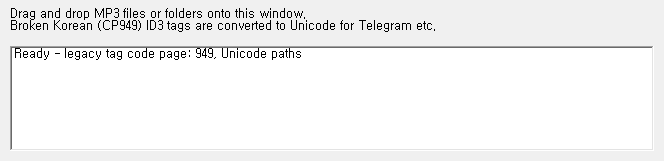
Double-click getMp3.exe. A small window opens with a short instruction line and an empty log. The first log line confirms the program is ready:
Ready - legacy tag code page: 949, Unicode paths
- legacy tag code page is the code page used to decode broken tags. It should be
949. - Unicode paths appears on NT-based Windows (2000 and later). On Windows 95/98/ME it reads
ANSI paths (Windows 9x).
Understanding the Problem
Why Korean MP3 titles turn into symbols, and how to recognise files that need fixing.
The Caption Comes From the ID3 Tag
When you send an MP3 in Telegram (and many other apps), the caption is built from the ID3 tag embedded in the file — the TPE1 (artist) and TIT2 (title) frames — not from the filename. A file named 085. 박미경 - 이브의 경고.mp3 can therefore show a completely different, garbled caption.
Why the Tag Is Garbled
Many MP3s ripped or tagged on Korean Windows in the late 1990s and 2000s stored text in CP949 (EUC-KR), two bytes per Hangul syllable, but marked the frame as ISO-8859-1 (Latin-1, one byte per character). Modern software trusts the label, so each Korean syllable is shown as two Western symbols:
| Text | CP949 bytes | Shown as Latin-1 |
|---|---|---|
| 박미경 | B9 DA B9 CC B0 E6 | ¹Ú¹Ì°æ |
| 이브의 경고 | C0 CC BA EA C0 C7 20 B0 E6 B0 ED | À̺êÀÇ °æ°í |
Telegram shows the caption as artist – title, so the example above appears as ¹Ú¹Ì°æ – À̺êÀÇ °æ°í.
How to Recognise Affected Files
- Captions full of characters such as
¹ Ú ° æ À Ì º ê Ç íwhere Korean text should be. - Players that show the same symbols in the artist or title column.
- Files that look fine in old Korean software but broken on phones and messengers.
Not sure? Just drop it.
getMp3 only changes frames it can prove are mis-encoded. Files that are already correct are reported as [OK] and left untouched.
Converting Files
Four ways to hand files to getMp3. All of them do exactly the same conversion.
Drag & Drop Onto the Window
- Start
getMp3.exe. - Select one or more MP3 files (or folders) in Explorer.
- Drag them onto the getMp3 window and release.
- Watch the log. A summary line ends each batch.
The window stays open, so you can keep dropping more files.
Drop Onto the Program Icon
Drag files or folders directly onto getMp3.exe (or a shortcut to it) in Explorer. The window opens and processes them immediately.
Whole Folders
When you drop a folder, getMp3 processes every file ending in .mp3 (any letter case) inside it and in all subfolders. Other files in the folder are ignored silently; only files you drop directly are reported as [SKIP] if they are not MP3s.
“Send To” Menu Shortcut
To fix files with a right-click instead of dragging:
- Press Win+R, type
shell:sendtoand press Enter. (On Windows 95/98, openC:\Windows\SendTo.) - Create a shortcut to
getMp3.exein that folder. - Right-click any MP3 files or folders → Send to → getMp3.
Command Line
Every argument is treated as a file or folder to process. Quote paths that contain spaces:
getMp3.exe "D:\Music\085. 박미경 - 이브의 경고.mp3" "D:\Music\Old Albums"
The window opens, processes the arguments and stays open so you can read the log.
Back up first
getMp3 rewrites files in place. It is careful (see chapter 5), but for an irreplaceable collection, copy it somewhere safe before the first run.
Reading the Log
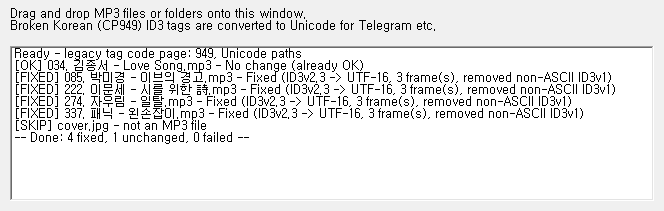
Every file produces exactly one line: a status, the file name and what happened.
Status Labels
| Status | Meaning | File modified? |
|---|---|---|
| [FIXED] | One or more frames were converted to Unicode and/or a Korean ID3v1 tag was removed. | Yes |
| [OK] | Nothing needed fixing: tags are ASCII or already Unicode, or the file has no tags. | No |
| [SKIP] | A file you dropped directly does not end in .mp3. | No |
| [FAIL] | The file could not be processed. The reason follows the file name (see chapter 6). | No |
Success Messages
| Message | Meaning |
|---|---|
| Fixed (ID3v2.3 -> UTF-16, N frame(s)) | N text frames in an ID3v2.3 tag were rewritten as UTF-16. |
| Fixed (ID3v2.4 -> UTF-8, N frame(s)) | N text frames in an ID3v2.4 tag were rewritten as UTF-8. |
| ..., removed non-ASCII ID3v1 | A Korean ID3v1 tag at the end of the file was removed. |
| ... (moved N missing field(s) to v2) | Values that existed only in ID3v1 were copied into ID3v2 before removal. |
| Fixed (created Unicode ID3v2.3 tag from ID3v1) | The file only had a Korean ID3v1 tag; a new Unicode ID3v2.3 tag was created from it. |
| No change (already OK) | Tags exist and are already correct. |
| No change (no tags) | The file has no ID3 tags at all. |
The Summary Line
After each drop (or command line run) getMp3 prints a summary:
-- Done: 4 fixed, 1 unchanged, 0 failed --
Skipped non-MP3 files are not counted.
What Gets Changed
A precise list of what getMp3 rewrites, what it removes and what it never touches.
Frames That Are Converted
Only text-bearing frames whose encoding byte says ISO-8859-1 (or UTF-8 inside an ID3v2.3 tag, which the v2.3 standard does not allow) are examined:
| Frames | Examples | Notes |
|---|---|---|
| T*** (all text frames) | TIT2 title, TPE1 artist, TALB album, TCON genre, TYER / TDRC year | Includes user-defined TXXX. |
| COMM | Comments | Language code is kept. |
| USLT | Unsynchronised lyrics | Language code is kept. |
| IPLS | Involved people (v2.3) |
How Text Is Classified
- All bytes below 0x80 (ASCII): already correct — not changed.
- Valid UTF-8: decoded as UTF-8 and relabelled.
- Valid CP949 byte pairs: decoded with code page 949.
- Anything else: assumed to be genuine Latin-1 (for example French or German text) and not changed.
Converted frames are written as UTF-16 with a byte-order mark in ID3v2.3 tags and as UTF-8 in ID3v2.4 tags. The tag version is never changed.
ID3v1 Rules
- An ID3v1 tag whose text is plain ASCII is kept.
- An ID3v1 tag containing Korean (non-ASCII) bytes is removed, because ID3v1 cannot store Unicode and some apps fall back to it.
- Before removal, title, artist, album, year, comment, track and genre are copied into the ID3v2 tag for any field that ID3v2 does not already have.
- If the file had no ID3v2 tag, a new ID3v2.3 tag is created.
Never Touched
- The audio data — copied byte for byte, no re-encoding.
- Album art (
APIC), track numbers and every frame that is not listed above. - Compressed or encrypted ID3v2.4 frames (copied without conversion).
- The file name, its folder, its creation / modification dates and its attributes.
How the File Is Replaced
- The new file is written next to the original as
<name>.mp3.getmp3.tmp. - The original timestamps are copied to it.
- The original is deleted and the temporary file is renamed to the original name.
- The original attributes are restored.
If anything fails before step 3, the temporary file is deleted and the original is left as it was.
Troubleshooting
What each failure message means and how to fix it.
Failure Messages
| Message | Cause | What to do |
|---|---|---|
| File is read-only | The read-only attribute is set. | Right-click → Properties → clear Read-only, then drop again. |
| Cannot open file (in use by another program?) | A player or another app has the file open. | Close the player (or stop playback) and retry. |
| Cannot replace original file (in use?) | The file became locked after it was read. | Close other apps using it and retry. The original is unchanged. |
| Unsupported ID3v2.2 tag | Very old tag format with 3-letter frame IDs. | Convert the tag to ID3v2.3 with a tag editor first. |
| ID3 tag is corrupted / Cannot read ID3 tag | The tag header claims more data than the file contains. | The file is damaged; re-rip or re-download it. |
| Cannot create temporary file | The folder is not writable (CD-ROM, protected folder, network share without write access). | Copy the files to a writable folder first. |
| Write failed (disk full?) | Not enough free space for the temporary copy. | Free up space and retry. |
| Path too long | The full path exceeds the Windows path limit. | Move the files to a shorter path. |
| Rename failed! Converted file is at: … | The original was already removed, but the converted copy could not be renamed (very rare). | Rename the listed .getmp3.tmp file back to the original .mp3 name. |
Telegram Still Shows the Old Caption
Messages that were already sent keep the caption they were sent with. Send the fixed file again. Also make sure you are sending the file that getMp3 fixed (check for a [FIXED] or [OK] line for that exact file).
Korean Text Is Wrong After Conversion
Check the first log line. If the code page is not 949, the program is running on a Windows 95/98/ME system without Korean support and fell back to the system code page. Run getMp3 on a Korean edition of Windows 9x, or on any NT-based Windows (2000 or later), where code page 949 is available.
The Log Shows [OK] but the Caption Is Still Broken
getMp3 leaves text it cannot identify as CP949 or UTF-8 untouched, to avoid damaging genuine Latin-1 tags. Tags that were mangled by other tools (for example, already double-converted) cannot be recovered automatically; retype them in a tag editor.
Leftover .getmp3.tmp files
If the computer lost power during a conversion, a *.mp3.getmp3.tmp file may remain. If the original .mp3 still exists, delete the temporary file. If the original is missing, rename the temporary file to the original name.
Technical Reference
Details for power users and the curious.
Binary
| File | getMp3.exe · 14,848 bytes · PE32 (x86) |
| Subsystem version | 4.0 (Windows 95 / NT 4.0) |
| Imported DLLs | kernel32, user32, gdi32, shell32 |
| C runtime | none |
| Instruction set | IA-32, no SSE |
| Private memory | ~1.7 MB while idle |
Windows 9x vs NT
- NT-based (2000 and later): Unicode file APIs (
CreateFileW,FindFirstFileW,DragQueryFileW, …) are resolved at runtime withGetProcAddress, so file names in any language work. - Windows 95/98/ME: ANSI file APIs are used. File names must be representable in the system code page.
- The UI text is plain ASCII, so it displays correctly on every Windows language edition.
ID3 Handling Details
- Supported tag versions: ID3v2.3 and ID3v2.4 (read and write), ID3v1 / ID3v1.1 (read, migrate, remove).
- Unsynchronisation is decoded before frames are converted; converted frames are written without it.
- Extended headers are dropped (their CRC would no longer match); ID3v2.4 footers are dropped.
- 256 bytes of padding are added to the rewritten tag.
- Folders are scanned up to 32 levels deep.
Privacy
getMp3 has no network code. It reads and writes only the files you give it and never sends anything anywhere.